
How to migrate from VMware to Hyper-V
A step-by-step plan for migrating a VMware environment to Hyper-V on your existing hardware.

Migrating to another platform can be an expensive, time-consuming process that affects users and business processes. Over the past few years Splitbrain’s experts have migrated several organisations. With the right tools and migration processes, we have been able to make a migration from VMware to Hyper-V much simpler and carry it out with almost no impact. We’d like to share that knowledge with you.
Temporary extra capacity for your VMware migration
The advantage of a migration from VMware to Hyper-V is that you can reuse your existing hardware for the new platform, so the production platform needs no extra capacity. Splitbrain can confirm whether your hardware meets the requirements for installing Windows Server Datacenter edition, which includes Hyper-V. Prefer to check it yourself? Use the Windows Server Catalog.
During the migration you do need some temporary extra capacity that you won’t need afterwards. To keep costs down, you can rent that capacity for the duration of the migration.
Setting up the Windows Server Datacenter platform
The good news is that Microsoft has a complete step-by-step plan ready for you: Windows Server deployment, configuration, and administration on Microsoft Learn.
In short, these are the steps:
- Validate the hardware
- Install Windows Server and Hyper-V
- Deploy and configure the cluster
- Configure the storage
- The platform is now ready for you to deploy VMs
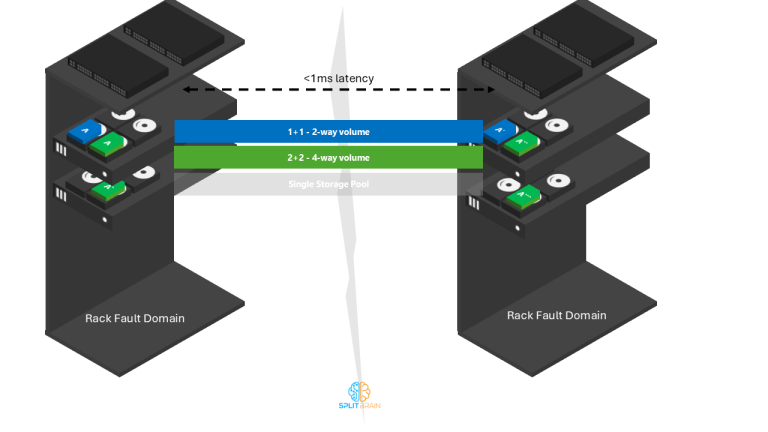
Storage Spaces Direct
If you choose to use Storage Spaces Direct (S2D), your platform has to consist of certified hardware. Have Splitbrain confirm this beforehand to avoid support problems later.
Tooling for a VMware to Hyper-V migration
For the migration from VMware to Hyper-V we recommend Veeam. Veeam is a reliable partner in the ecosystem with years of experience on Hyper-V and VMware platforms. Its user-friendly interface simplifies the migration and keeps the impact to a minimum. Veeam can migrate both VMs and physical servers, and lets you test migrated servers before you switch platforms. Veeam’s bulk recovery feature uses resource scheduling to run the migration as efficiently as the available resources allow.
If you don’t have paid Veeam licences, you can use the free Community Edition. It is limited to migrating 10 VMs at the same time.
Data backup and recovery
Since we use Veeam for the migration, it makes sense to keep using it for backups and data recovery. That said, there are many other good backup solutions, too many to list here.
Want help planning or running your migration? Read how we approach datacenter modernization or get in touch.
Let’s talk it through
One conversation is usually enough to see where the value is for your organization, whether that’s in cost, risk, or everyday management. No slides required.

Related blogposts




Navigation
Important links
Contact details
Socials

